You shared your location with someone months ago. Now you want that to end, and you don’t want an awkward conversation about it. That is a common privacy problem, and it has a simpler answer than most guides suggest.
Here is the short version. According to Apple’s support pages, when you stop sharing your location with one person in Find My, Messages, or Maps, that person is not sent an alert. They can still notice later that your location is gone. This guide covers seven ways to stop or change what you share, what the other person actually sees with each one, and the trade-offs.
Part 1. What is iMessage Location Sharing and When Do We Need to Stop It?
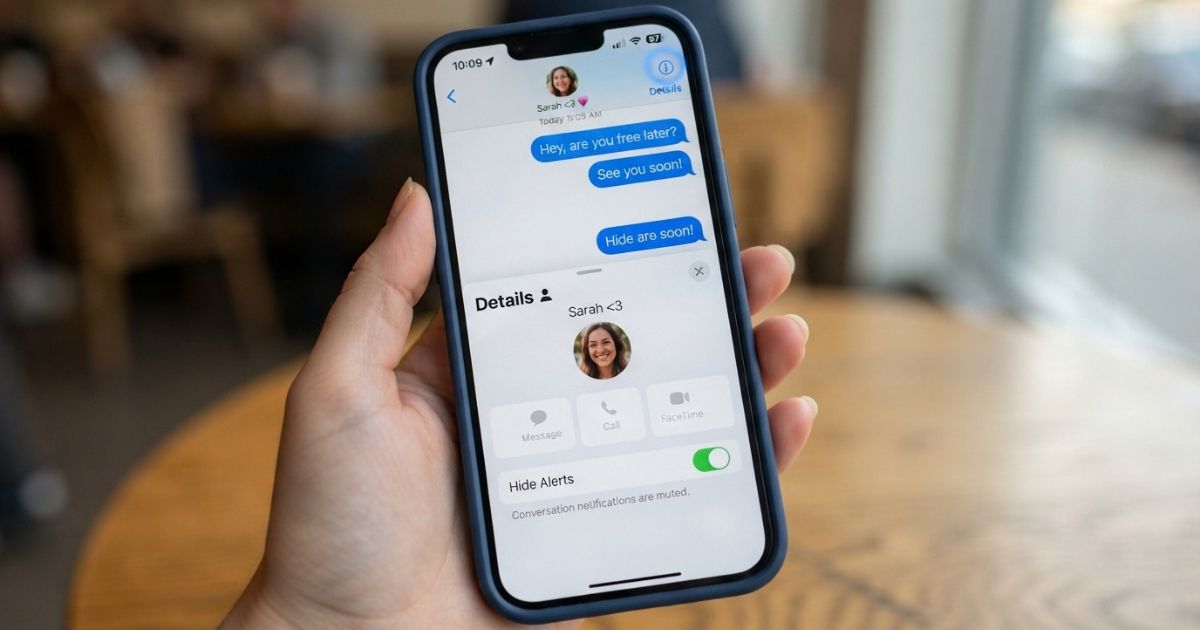
iMessage location sharing lets people you trust see where you are. It runs through Apple’s Find My service, and you can start it from the Find My app, the Maps app, or a Messages conversation.
You can share in three ways:
- For one hour
- Until the end of the day
- Indefinitely
The person you share with can open Find My, Maps, their Contacts card, or the top of your Messages thread to see your position on a map.
Sharing is useful for meeting up, family safety, and travel. But there are many good reasons to end it:
- Privacy: You may not want anyone to see your movements all day.
- Boundaries: Constant visibility can feel like pressure, even from people you love.
- Surprises: A birthday plan is hard to hide if your dot is on a map.
- Battery life: Frequent location updates use power.
- Changed relationships: A former partner, coworker, or acquaintance may no longer need access.
Wanting privacy is a normal choice. If you feel unsafe because of someone who tracks you, skip ahead to the Safety Check tip in Part 3.
Related Post:Tech FeedBuzzard: Making Technology Easy to Understand
Part 2. When You Stop Sharing Location Does It Notify The Other Person iMessage?
In most cases, no. Apple’s support documentation says that when you stop sharing with someone, they won’t be notified. It also says that stopping in one app stops sharing across all apps.
That does not mean the other person will never find out. Your dot vanishes from their map. If they open Find My, they may see no location for you, or they may notice you are missing from their list. Some users on Apple’s community forums also report seeing a line in the message thread. Reports vary by iOS version, so it is worth testing with a friend before you rely on it.
Starting to share again is different. Apple says the other person gets a notification when you turn sharing back on.
When Does iMessage Notify The Other Person?
These actions can alert the other person:
- Starting to share again after you stopped. They receive a notification.
- Dropping a pin in Messages. Apple says the recipient gets a notification.
- Location alerts. If someone sets a notification for when you arrive or leave a place, you are told about that alert.
- Sending your location in a chat. The message itself is visible in the thread.
These actions usually do not send an alert:
- Stopping with one person in Find My
- Turning off Share My Location for everyone
- Turning off Location Services
- Using Airplane Mode
Even without an alert, the other person may still see a change. Quiet is not the same as invisible.
Part 3. How to Stop Sharing Location without Notifying iMessage
Below are seven methods. The table shows what each one looks like from the other person’s side.
| Method | Alert sent? | What they may see |
| 1. Location changer software | No | A fake location |
| 2. Stop sharing in Find My | No | You are gone from their list |
| 3. Disable Location Services for Find My | No | No location found |
| 4. Airplane Mode | No | Old or missing location |
| 5. Use another Apple device | No | That device’s location |
| 6. Turn off Precise Location | No | An approximate area |
| 7. Sign out of iCloud | No | No location found |
Method 1. Hide Real Location via TunesKit Location Changer
This method does not stop sharing. It changes what you share. TunesKit Location Changer is desktop software that overrides your iPhone’s GPS position, so the map shows a place you choose instead of your real one.
Steps:
- Install the software on a Windows PC or Mac.
- Connect your iPhone with a cable.
- Turn on Developer Mode on your iPhone when prompted.
- Search for the address you want to appear at.
- Click the button to apply the new location.
Pros:
- Your dot stays on the map, so there is no “no location found” message.
- It can simulate movement along a route.
- It also works for other location-based apps.
Cons:
- You need a computer and a cable.
- It is paid software.
- Apple does not support it, and some apps ban spoofing.
- It is a deliberate deception. If the person finds out, trust may suffer more than if you had simply stopped sharing.
Think carefully before choosing this one. If your goal is privacy, methods 2 and 6 are honest and simple. Spoofing fits best for surprises or for testing apps.
Method 2. Stop Sharing Location in Find My App
This is the cleanest and most direct option, and it follows Apple’s own steps.
To stop with one person:
- Open the Find My app.
- Tap People.
- Tap the person’s name.
- Scroll down and tap Stop Sharing My Location.
- Confirm when asked.
To stop with everyone:
- Open Find My.
- Tap the Me tab.
- Turn off Share My Location.
Pros:
- Apple says no notification is sent.
- It ends sharing in Messages and Maps as well.
- You can turn sharing back on any time.
Cons:
- The other person may notice your location is missing.
- Sharing again sends them a notification.
- The “everyone” switch is a big hammer if you only need to hide from one person.
Good to know: If you delete the Find My app, people can still see you. Apple says you must reinstall the app and stop sharing properly.
Method 3. Disable Location Services for “Find My”
This blocks Find My from reading your location.
Steps:
- Open Settings.
- Tap Privacy & Security.
- Tap Location Services.
- Scroll to Find My.
- Choose Never.
Apple’s safety guidance says no one is notified when you turn off Location Services.
Pros:
- Works in the background.
- No alert.
Cons:
- Some features may stop working.
- The other person may see “No location found.”
- It can affect how you locate your own lost device.
Turn the setting back to “While Using the App” or “Always” later if you want features restored.
Method 4. Turn On Airplane Mode
Airplane Mode cuts cellular, Wi-Fi, and Bluetooth, so your phone cannot send new location data.
Steps:
- Open Control Center.
- Tap the Airplane Mode icon.
- Turn it off when you are ready to be reachable.
Pros:
- Instant and free.
- No settings to change.
Cons:
- You cannot make calls or use data.
- It is temporary.
- The other person might see an older position or “No location found.”
- Sharing resumes as soon as you reconnect.
This works as a short pause, not a lasting solution.
Method 5. Use Another Apple Device as Your Location
If you own an iPad or a second iPhone, you can tell Find My to use that device as your location instead.
Steps:
- Leave the second device where you want to appear.
- Open Find My on that device.
- Tap Me.
- Select Use This Device as My Location.
Pros:
- Your dot stays visible.
- No spoofing software needed.
Cons:
- It requires a second Apple device that stays in one place.
- Anyone who compares your movements to your messages may notice.
- It is still a form of misdirection.
Method 6. Turn Off Precise Location
Precise Location shows your exact spot. Turning it off shows only a general area.
Steps:
- Open Settings.
- Tap Privacy & Security, then Location Services.
- Tap Find My or Messages.
- Turn off Precise Location.
Pros:
- Keeps sharing on but reduces detail.
- Feels less like cutting someone off.
Cons:
- The person can still see your neighborhood or area.
- It does not fully hide you.
This works well for family members who only need a rough idea of where you are.
Method 7. Sign Out of iCloud [Not Recommended]
Signing out of your Apple ID stops location sharing from that account, but it comes with real costs.
Steps:
- Open Settings.
- Tap your name.
- Scroll down and tap Sign Out.
- Enter your password and confirm.
Cons:
- It turns off iCloud backups, Messages sync, and Find My for your own device.
- It can leave your phone harder to recover if it is lost or stolen.
- Sharing may restart when you sign back in.
- The other person may see “No location found.”
Use methods 2 or 3 instead. They reach the same goal with fewer side effects.
Bonus: Use Safety Check if You Feel Unsafe
If you are worried about someone tracking you, Apple’s Safety Check tool (iOS 16 and later) can review and reset who can see your data. Find it under Settings > Privacy & Security > Safety Check. It also has an emergency option that quickly stops sharing with everyone. If you are in danger, contact local emergency services or a trusted support organization.
Part 4. FAQs about Stopping iMessage Location Sharing
Will the other person be notified if I stop sharing my location?
No. Apple says the person you stop sharing with is not notified, though they may notice you disappear.
Can someone tell I stopped sharing?
Yes, if they check. They may see no location for you or find you missing from their list.
Will they be notified if I start sharing again?
Yes. Apple says restarting sharing sends them a notification.
Does turning off Location Services notify anyone?
No. Apple says no one is notified, but some features may stop working.
Does Airplane Mode stop location sharing?
Only while it is on. Your phone cannot send updates until you reconnect.
Can I pause location sharing temporarily?
Yes. Turn off Share My Location in Find My’s Me tab, then turn it back on later.
What does “No location found” mean in Find My?
It usually means the person turned off sharing, lost signal, or their phone is off.
Does deleting the Find My app stop sharing?
No. Apple says people can still see you until you stop sharing properly.
Can I fake my location on iPhone?
Yes, with a second Apple device or third-party software, but this can hurt trust if discovered.
Is there a safe way to stop sharing if I feel threatened?
Yes. Use Safety Check in Settings, and contact emergency services if you are in danger.
Conclusion
Stopping location sharing on iPhone is easier than most people think. The cleanest route is Find My: open People, pick the contact, and tap Stop Sharing My Location. Apple says that action does not notify the other person.
The other methods each solve a narrower problem. Turning off Location Services or using Airplane Mode works as a quick pause. Precise Location keeps things friendly while limiting detail. A second Apple device or a spoofing tool changes what people see, but these carry the highest risk to trust. Signing out of iCloud costs too much for what it delivers.
Whatever you choose, remember that quiet is not invisible. A person who checks the app may see your dot is gone. If the relationship matters, a short, honest message such as “I’m taking a break from location sharing” often prevents more trouble than any setting.